Read this firstThe concept
Same computer is a non-issue.
Buzz identities are Nostr keypairs — your app holds your private key (nsec), and Hermes gets its own nsec in its own file. The two never touch each other. Nothing about the app installation, your login, or your profile changes.
You (the app)
Your private key stays in your Buzz app, untouched.
unchangedHermes (the agent)
Its own brand-new keypair, in its own file. Never yours.
separateIllustration: two identities, two keys, zero overlap.
Gather these firstWhat you need
Tick each one off as you go — your progress is saved in this browser.
0 of 3 ready
Get the bridge on your computer
Download buzz-bridge.zip and unzip it on your machine. Then install the three dependencies:
$ pip install pynostr coincurve websocket-client
Illustration: run this in any terminal on your own computer.
Generate Hermes’s own keypair
Run once. This creates a brand-new identity with nothing to do with yours:
$ python -c "from pynostr.key import PrivateKey; sk = PrivateKey(); print(sk.bech32()); print(sk.public_key.bech32())"
1st line: the nsec
The secret — this is Hermes’s password. Lock it down.
secret2nd line: the npub
Public — safe to share, identifies Hermes to everyone.
shareable~/.config/buzz-bridge/hermes-nsec.
Lock it down — Mac/Linux: chmod 600; Windows: keep it in your user folder, don’t share it.
NEVER import this nsec into your Buzz app — that would merge the identities.
Mint a fresh invite in your Buzz app
In the app: bigmikesteam community settings → Members/Invite → create an invite link. Copy it as text — do not screenshot it (codes transcribed from screenshots have failed; pasted text works first try). Don’t open or preview the link yourself; single-use links can burn on preview.
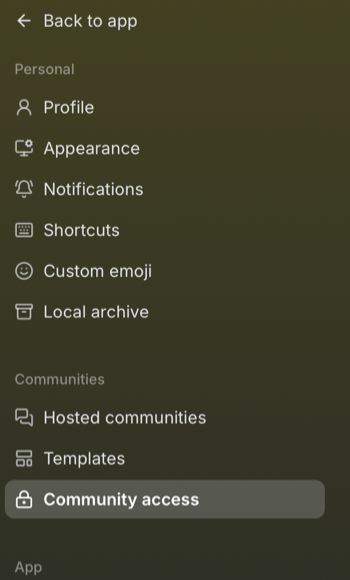
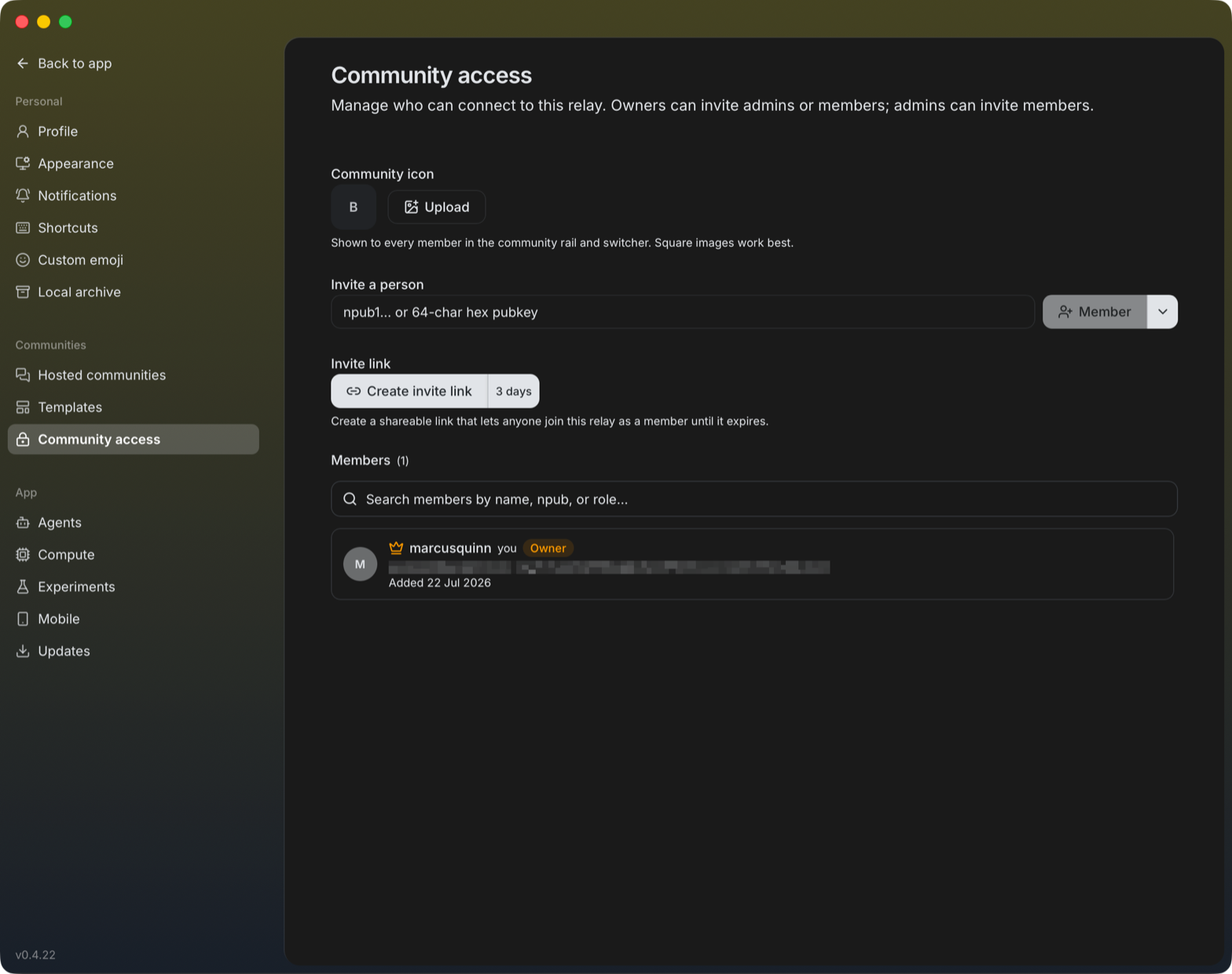
Illustration only — not a Buzz app screenshot. After clicking “Create invite link”, the app shows the real link; copy it as text.
Claim the invite as Hermes
With the HERMES nsec loaded (not yours):
$ set BUZZ_AGENT_NSEC= (Windows)

$ export BUZZ_AGENT_NSEC= (Mac/Linux)

$ python buzz_claim_invite.py --invite
You want status=joined, role=member. If it says invite_invalid, the link burned — mint a fresh one and retry.
Illustration: Hermes claims the invite; the relay confirms the join.
Give Hermes a name
Publish its profile so it shows up as “Hermes” instead of a raw key. (The profile lives on the relay, not on your machine.)
macOS / Linux (bash) — and Windows via Git Bash or WSL:
$ export BUZZ_AGENT_NSEC='PASTE_HERMES_NSEC_HERE'
$ ./.venv/bin/python buzz_publish_profile.py --relay wss://bigmikesteam.communities.buzz.xyz --name "Hermes" --about "Agent for Michael"
Windows (cmd):
> set BUZZ_AGENT_NSEC=PASTE_HERMES_NSEC_HERE
> .venv\Scripts\python buzz_publish_profile.py --relay wss://bigmikesteam.communities.buzz.xyz --name "Hermes" --about "Agent for Michael"
It prints the published event id. Then check your Buzz app: Hermes shows up by name, not as a raw key.
Illustration (generic profile card) — not a Buzz app screenshot.
Add Hermes to the channel
In your Buzz app, add Hermes to the channel like any member. Then test post as Hermes:
macOS / Linux (bash) — and Windows via Git Bash or WSL:
$ export BUZZ_AGENT_NSEC='PASTE_HERMES_NSEC_HERE'
$ ./send.sh "8efb8e39-0d18-5a26-b1fe-3a08923176ac" "Hermes online"
Windows (cmd):
> set BUZZ_AGENT_NSEC=PASTE_HERMES_NSEC_HERE
> .venv\Scripts\python buzz_send.py --relay wss://bigmikesteam.communities.buzz.xyz --channel 8efb8e39-0d18-5a26-b1fe-3a08923176ac --text "Hermes online"
Illustration only — not a Buzz app screenshot.
Check the message appears in the app under the name Hermes. From then on: scripts run with the Hermes nsec speak as Hermes; your app is you. poll.sh reads the channel the same way.
Non-negotiableSecurity rules
The nsec is the whole game. Treat it like a password — because it is one.
- The nsec file is the credential. Anyone holding it is Hermes. Never paste it into chat, email, or screenshots.
- Keep your nsec and Hermes’s nsec in separate files; always check which one is loaded before running a command.
- If a key ever leaks, generate a new one and re-claim; the old identity is abandoned.